
Method · 9 min read
How to turn survey answers into a word cloud that actually says something
A practical method for turning hundreds of free-text survey responses into one honest picture, including the cleaning steps most word cloud tutorials skip.
By Alok Kumar · · updated
A word cloud made from free-text survey answers is either the most honest slide in the deck or the most misleading one, and the difference is almost entirely in what you do before the words reach the generator. The drawing part takes a minute. The cleaning part is the work.
This is the process we use on event feedback forms, where a few hundred people answer something like “describe the evening in your own words” and someone needs a single image for the wrap-up report by morning.
Start by deciding what the picture has to prove
Word clouds size words by how often they appear. That is the entire model. It means a cloud can answer “what did people talk about?” very well and “what did people think?” very badly, because brilliant and disappointing both become medium-sized words if they were each said twelve times.
So before you touch the data, write down the question in one sentence. If the sentence contains a judgement — better, worse, happier, more likely to recommend — a word cloud is the wrong chart and you want a count or a rating instead. If the sentence is about vocabulary, recurring themes or the language people reach for unprompted, carry on.
Get the answers into one plain column
Export the survey to CSV and reduce it to a single column of free text, one response per row. Delete the ratings, timestamps and IDs. If you asked two open questions, treat them as two separate clouds; mixing “what worked” with “what didn’t” produces an image that means nothing.
Watch for three things that quietly wreck the counts:
- Empty and joke rows. “n/a”, “-”, “nothing” and “asdf” are common enough in a few hundred responses to outrank real answers.
- Duplicated boilerplate. If your form pre-filled a prompt, or people pasted the question back into the answer, every one of those words is counted once per respondent.
- Smart quotes and stray casing. Don’t and don't are two different strings to a counter, and so are Sound and sound unless the tool lowercases first.
Let the tool count, then fix what it got wrong
Paste the column into the import box in WordCloud Studio and let it count frequencies for you. It lowercases, strips punctuation and removes a standard English stopword list — the, and, was, very — which is the floor, not the ceiling, of what needs removing.
The stopwords that actually matter are the ones specific to your question, and no generic list contains them. In feedback about a music festival, the words festival, event and music will top every chart and tell you nothing, because you asked people about a music festival. Cut them. What is left underneath is the interesting part: queue, sound, friendly, rain.
This is the single highest-leverage edit in the whole process. Expect to remove between five and fifteen words by hand, and expect the cloud to get dramatically more informative each time you do.
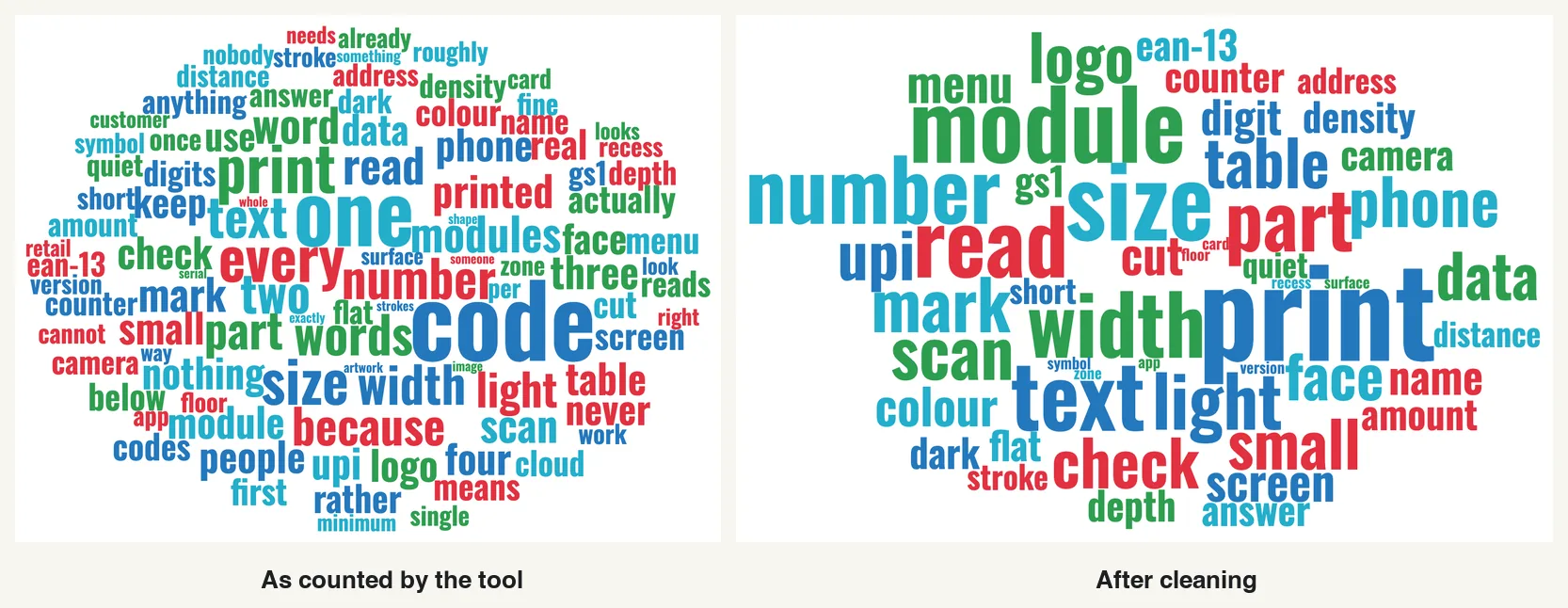
The example shows both kinds of word to remove. Code was the biggest word only because half of the guides are about codes, which is the festival problem above. The filler, one, every, two and because, came through the tool’s standard list as four of its twelve biggest words. Neither kind tells a reader anything.
Merge the words that are the same word
Counters treat queue, queues, queueing and queuing as four separate entries, each too small to appear. Together they might be the biggest theme in the dataset. Decide on one spelling, add the counts, and enter it once with the combined weight. The same applies to obvious synonyms your respondents used interchangeably — staff and crew, loo and toilet.
Set the weights deliberately
Once the list is clean you can hand-set the number beside each word. Raw frequency is the honest default, but two adjustments are defensible and worth knowing:
- Compress the top end. If your most common word appears 180 times and the tenth appears 12, a linear scale makes the first word enormous and the rest unreadable. Halving the top two or three weights keeps the ranking intact and lets fifty more words onto the canvas.
- Floor the long tail. Words said once are noise. Dropping everything below three mentions typically removes half the list and none of the meaning.
What is not defensible is quietly promoting a word because you wanted it to be prominent. If you do adjust weights, say so in the caption. “Sized by how often each word appeared, top three compressed for legibility” is one line and it keeps the chart honest.
Sanity-check the result against the raw text
Before the image goes anywhere, pick the three largest words and search the original responses for each one. You are looking for the trap that catches everybody: a word that is large because it appeared inside a phrase that means the opposite of what the word suggests. Wait is a good example. It looks neutral in a cloud and reads as “worth the wait” or “waited an hour” in the text, and those are not the same finding.
Our own example has one. Table came out as a mid-sized word in the cleaned cloud. In the text, 20 of its 25 uses are restaurant tables and table tents in the menu guide and 5 are tables of figures, so the word is real but it is two findings, not one.
If a big word turns out to be ambiguous, either split it into the two phrases people actually used, or drop it and mention the ambiguity in the write-up. A cloud with one honest caveat beats a clean-looking one that nobody can defend in the room.
Then make it readable
Only now is it worth thinking about shape and colour. Two settings do most of the work:
- Density. Higher density fits more words but shrinks the small ones. If the audience will see this on a slide from the back of a room, drop the density and accept fewer words; if it is going in a report people hold, push it up.
- Minimum font size. Anything that ends up under about eight pixels at final size is decoration, not data. Raise the floor until every word on the canvas is one a reader could actually read, then let the tool drop whatever no longer fits.
Export at 4K or larger if it is going to print, or as SVG if it might be resized later. Both are free and neither adds a watermark. The design guide covers shape, typeface and palette in more detail.
A short checklist
- Write the question the image must answer. If it is about sentiment, stop.
- Reduce the export to one column of free text, one response per row.
- Delete empty, joke and boilerplate rows.
- Import and let the tool count.
- Remove the words your own question guaranteed would win.
- Merge plurals, tenses and obvious synonyms.
- Compress the top weights, floor the tail below three mentions.
- Check the top three words against the raw responses.
- Set density and minimum size for where it will be seen.
- Caption it with the sample size and any weighting you applied.
About the author
Alok Kumar is a co-founder of 4Brains Technologies in Navi Mumbai.