
Method · 9 min read
Product photos on white: full-size cut-outs, and where they fail
What full resolution means in a cut-out, how one becomes a square listing image on pure white, and three measured tests of where automatic cut-outs go wrong.
A listing needs the product alone on white, and an automatic background remover gets you there in a few seconds. Two things decide whether the result is usable: whether the file you download is the size of the photo you took, and whether the cut follows the product’s real edge. This guide takes one product shot all the way to a square listing image with our Background Remover, then measures where the cut goes wrong.
The test pictures are 3D renders, not photographs, and we chose them on purpose. A render comes with its exact outline, because the software knows which pixels belong to the product. That let us compare every cut-out with the true outline pixel by pixel, instead of judging it by eye. The product is a real one: the AirPods Pro stand from the 4B Engraver’s built-in models, at its real size of 76 × 44 × 30 mm.
What full resolution means
Full resolution means the cut-out has the same pixel dimensions as the picture you uploaded. Our test image was 4,000 × 3,000 pixels, the size of a typical 12-megapixel phone photo, and every cut-out came back at 4,000 × 3,000. Our files were small JPEGs, though, not photos straight from a phone; see the note on file size below. Many free removers show a full-size preview but let you download only a small file, and charge for the real one. Check the pixel size of the file you saved, not of the picture on the screen.
Full resolution does not mean the outline is computed at full resolution. The model behind Background Remover looks at the picture at 1,024 × 1,024 pixels and scales its mask back up to your size. The product’s own pixels are untouched, but the edge is interpolated. In our red-stand cut-out about 46,000 pixels along the outline are partly transparent. That is a soft rim a few pixels wide rather than a jagged cut, and it is why the product sits cleanly on a new background.
One consequence matters for product photos. The mask has the same detail however large your file is, so the more of the frame the product fills, the more of that detail lands on the product. Shoot close.
A product shot, step by step
1. The photo and the cut-out
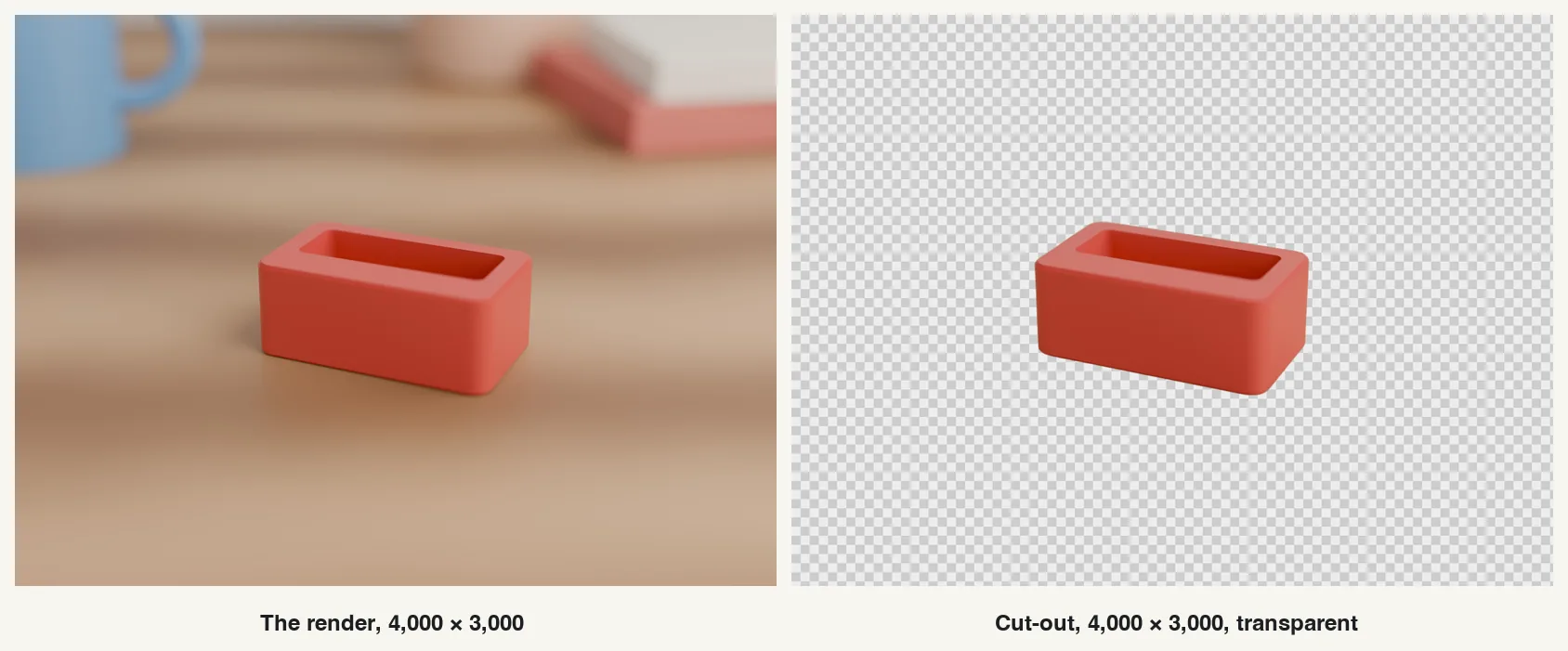
The cut took a few seconds. Compared with the exact outline, 4,048 pixels were wrong out of 1,024,552 that belong to the stand: 0.4%, all of them in a thin line along the edge. The shadow under the stand went with the desk, because a cast shadow belongs to the background. On white the stand looks a little lighter for it. If your other listing photos have a shadow, add a soft one in an image editor; otherwise leave it out.
2. Put it on white
Background Remover has three background choices: Transparent, White and a colour you pick. With White chosen, it offers the result as a PNG or a JPEG, both at full size. We measured both. In the PNG every background pixel was exactly white (255, 255, 255). In the JPEG, 99.8% were. The rest sat within 17 pixels of the product’s edge and were no darker than 248, which is what JPEG compression does next to a sharp edge. If your marketplace checks for pure white, the PNG removes the question; the JPEG was less than a fifth of the PNG’s size (112 KB against 613 KB).
3. Frame it as a square
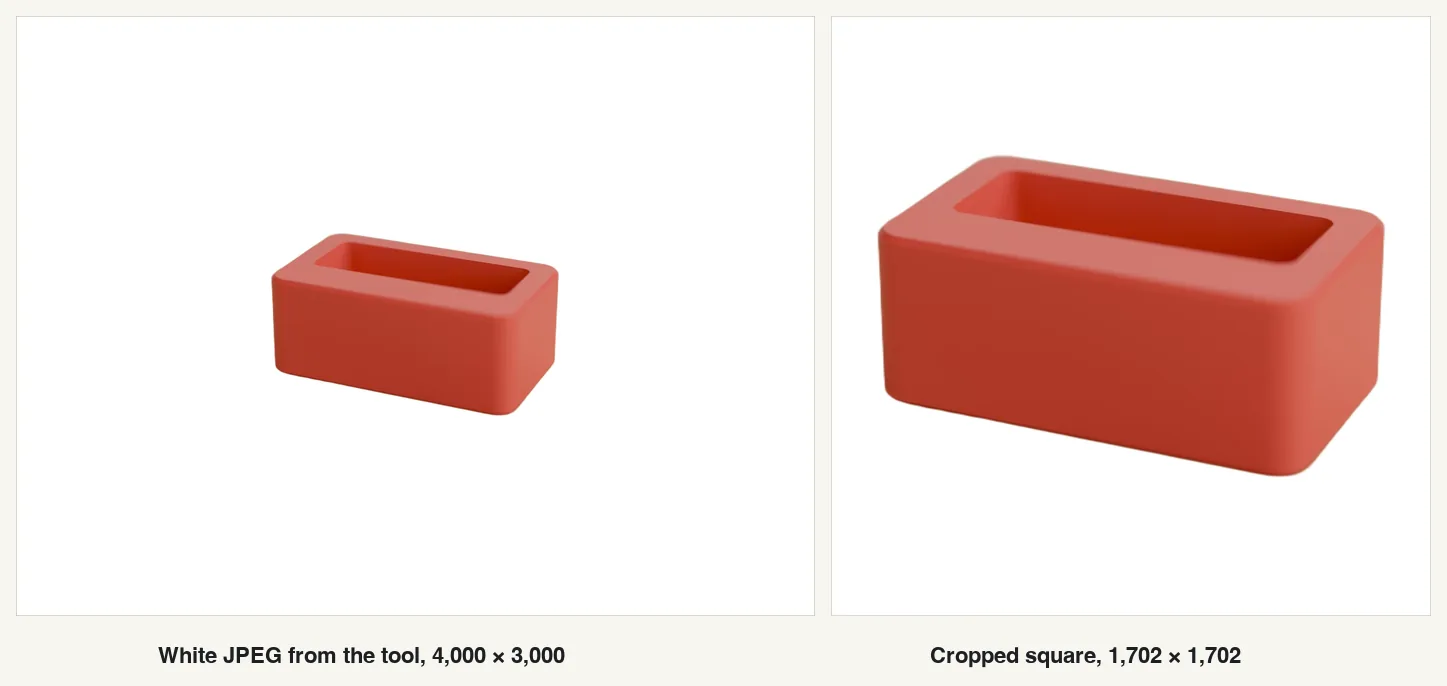
Marketplaces publish their own image rules and change them, so read the current requirements in your seller account before you upload. The common ones for a main image are a pure white background and a product that fills most of the frame; 85% of the frame is the figure sellers usually work to. Make the square in any image editor: crop, do not enlarge.
Here the cost of shooting from too far away shows up. The stand covered only 1,447 of the photo’s 4,000 pixels of width, 36%, so the square listing image is 1,702 pixels wide even though the photo was 4,000. A crop throws away everything the product does not cover. Framed so that the stand filled the photo’s height when it was taken, the same camera would have given a listing image of up to 3,000 × 3,000.
Where it fails, measured
We made two more test renders of the kind that trouble every background remover, ran each through the live tool, and compared the result with the exact outline of the product.
| Test | Pixels cut wrongly | What went wrong |
|---|---|---|
| Red stand on a wooden desk | 4,048 (0.4% of the stand) | A thin line along the edge. |
| Beige stand on beige linen, beige wall | 49,945 (4.9% of the stand) | 49,164 pixels of the stand cut away, mostly its back rim; 781 pixels of background kept. |
| Clear glass tumbler on the desk | 16,563 (0.6% of the glass) | The outline is right, but the glass came back solid: average opacity inside it 99.3%. |
Low contrast: the edge goes where the tones meet
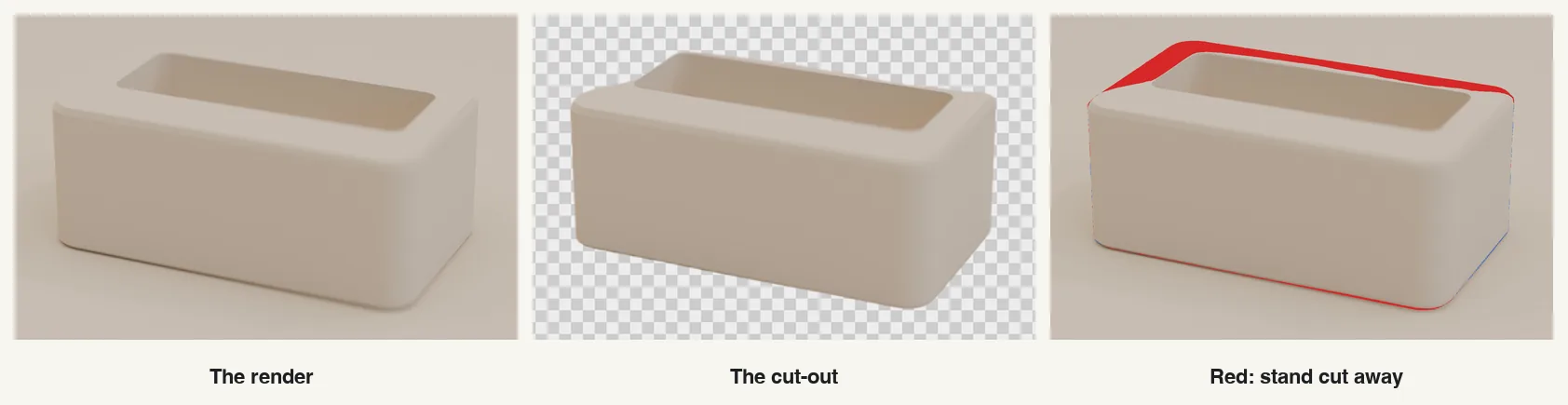
The same stand, camera and framing, now in beige PLA on a beige cloth in front of a beige wall. The cut lost twelve times as many pixels as on the red stand, and they are not random: a band along the back rim, exactly where the top of the stand meets a wall of the same tone. In a photograph this looks like a stand with a rounded, slightly melted back edge, which is easy to miss at thumbnail size and obvious when a customer zooms in.
The fix is at the camera, not in the tool. A light product goes on a darker or coloured sheet, a dark product on a light one. Any clear difference in brightness or colour between product and background does more for the cut than anything you can do afterwards.
Glass: the outline is right, the see-through part is not
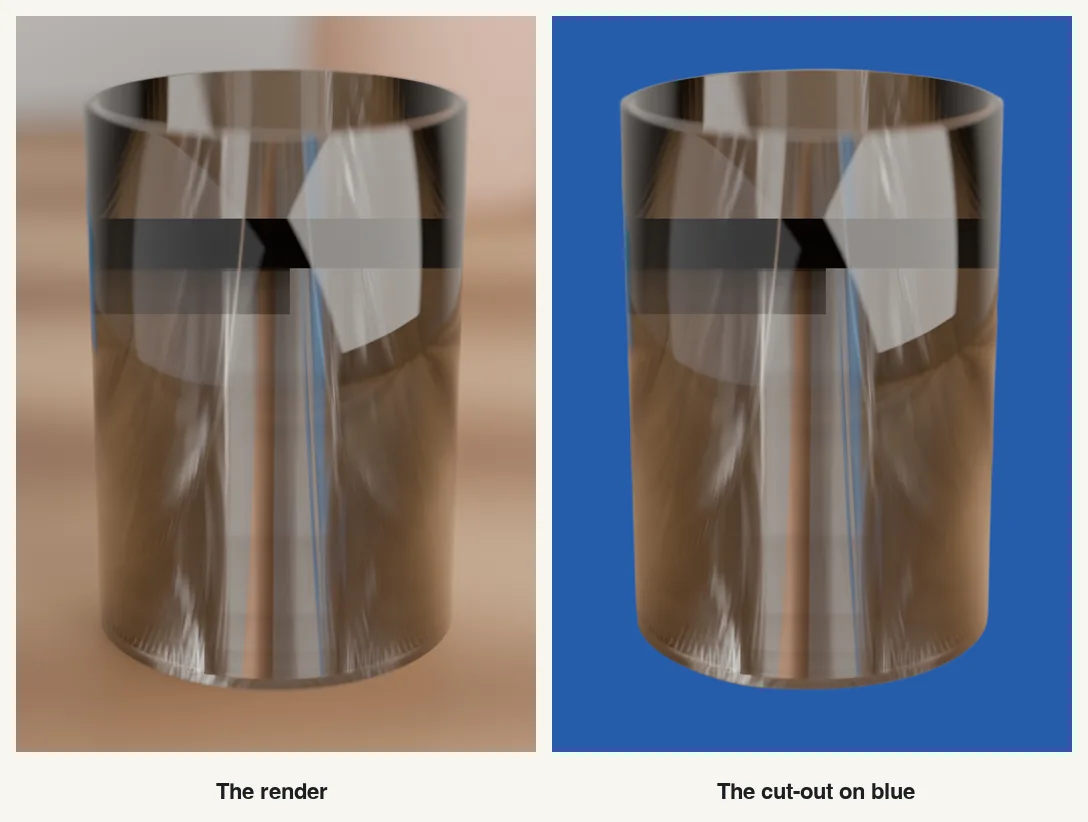
Background removal answers one question per pixel: product or background? A clear glass is both, and the model answered “product” for 99.3% of it. The outline is nearly perfect, so the result looks fine on white at a glance, but whatever was behind the glass when you took the picture is now printed inside it. Put the cut-out on any other background and the glass shows the old one. The same goes for bottles, clear packaging, acrylic stands and anything else you can see through.
For transparent products, skip background removal. Photograph them on white in the first place, on a sheet of white paper or card curved up behind the product, or in a light box, so that what shows through the glass is already the white you want.
The cases we did not test here
Fine hair and fur, thin wires and plant stems, motion blur, several products in one picture and photos that have been through a chat app are also hard for every background remover. Background Remover’s own page describes each of them, with what makes a good input photo: where background removal still struggles. We have not measured those cases, so this guide gives no numbers for them.
What happens to the photo
Background Remover runs on a graphics card on our own server in India, so the photo does leave your device. It is held in memory for the seconds the cut takes and then discarded; nothing is written to disk, and there is no account and no history.
Keep the file under about 1 MB for now. The tool states a limit of 25 MB, but on 10 October 2026 the server in front of it refused any larger upload, with the message that the image was larger than the 25 MB limit. That is why our uploads for this guide were JPEGs of 128 to 341 KB. A full-size JPEG from a phone camera is usually over 1 MB, so make a smaller copy first, by lowering its JPEG quality or its pixel size. The cut-out comes back at the pixel size of that copy.
Checklist
- Shoot the product filling most of the frame, with a little space around it.
- Put it on a background that differs clearly in tone or colour: dark for a light product, light for a dark one.
- Use soft, even light; a hard shadow goes with the background anyway.
- Upload your own copy of the photo, not one from a chat app or a screenshot. While the tool refuses files over about 1 MB, make a copy under that size yourself, so that you choose what quality to give up.
- Check the pixel size of the downloaded file against the photo.
- Zoom in on the edge where the product meets anything of a similar tone.
- Choose White; take the PNG if every background pixel must be exactly white.
- Crop to a square around the product. Crop, never enlarge.
- Glass and clear plastic: photograph on white instead of cutting out.
- Read your marketplace’s current image rules before you upload.
About the author
Sanjeev Shankar Sinha is a co-founder of 4Brains Technologies in Navi Mumbai. He builds and tests the 4Brains Labs tools.